If you have a large number of surveys in your account and want to organise them in folders, or give other account users access to them through user management, it's worth working with folders and assignments. Here's how to create folders to keep things clear, sort your surveys into them and share them with account users.
You can create folders and subfolders and store surveys in them from the Basic plan upwards. Assigning and sharing surveys and survey folders with account users and teams is part of user management and is available from the Platinum plan upwards.
Contents
1. Create folders and subfolders
To organise your surveys, you can create folders and subfolders in the left-hand navigation area of the survey overview:
- Folder: click the "+New folder" button, enter a name for the folder and save.
- Subfolder: click the "+New folder" button, enter a name for the folder and select "Place under ...".
You can edit or delete folders and subfolders at any time in the folder overview, using the three dots to the right of each folder.
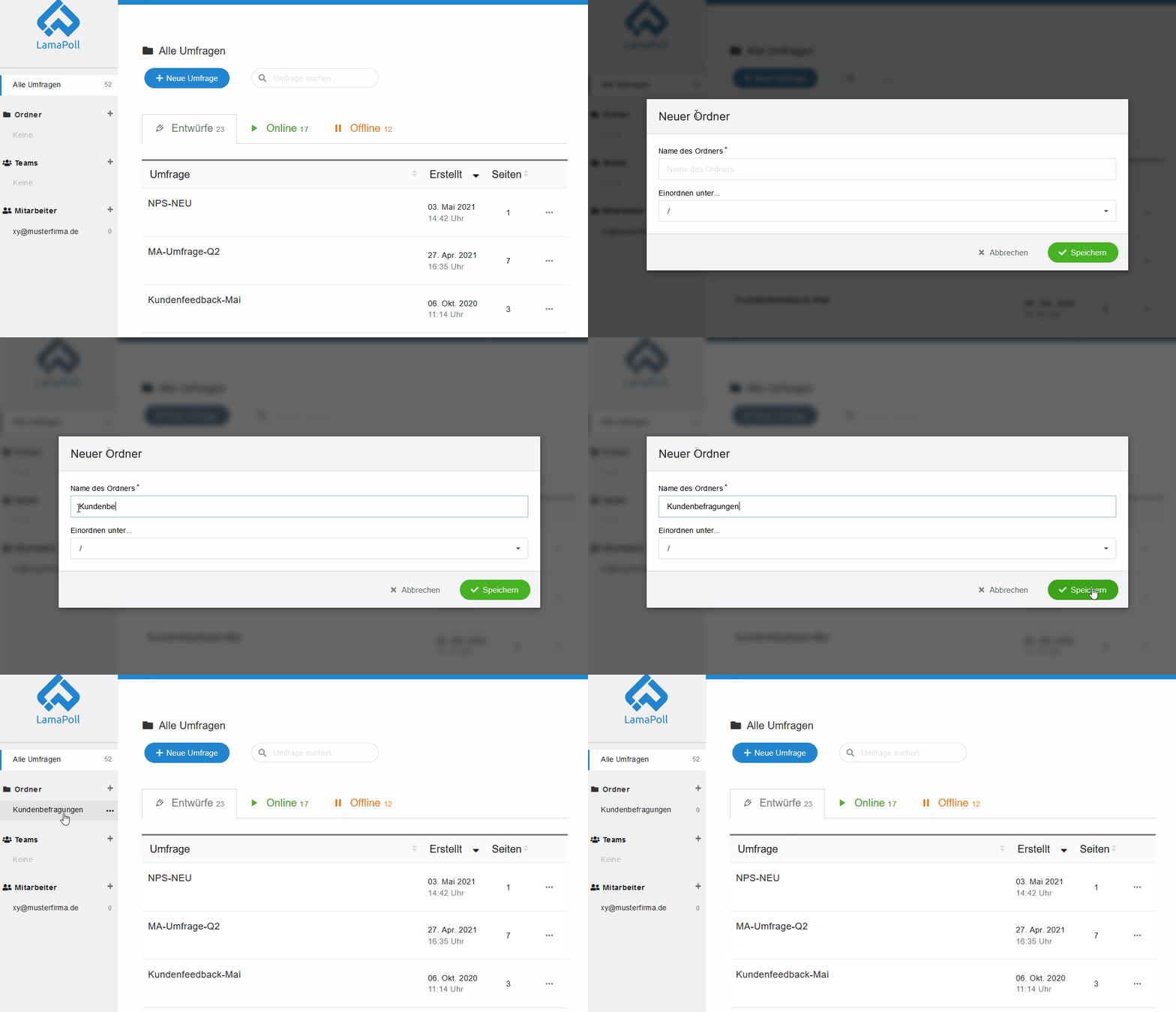 GIF: creating a survey folder with "New folder"
2. Assign surveys to folders
In the survey overview, each survey has an "assign" button.
Use this button to place the survey in a folder, in other words, to assign it:
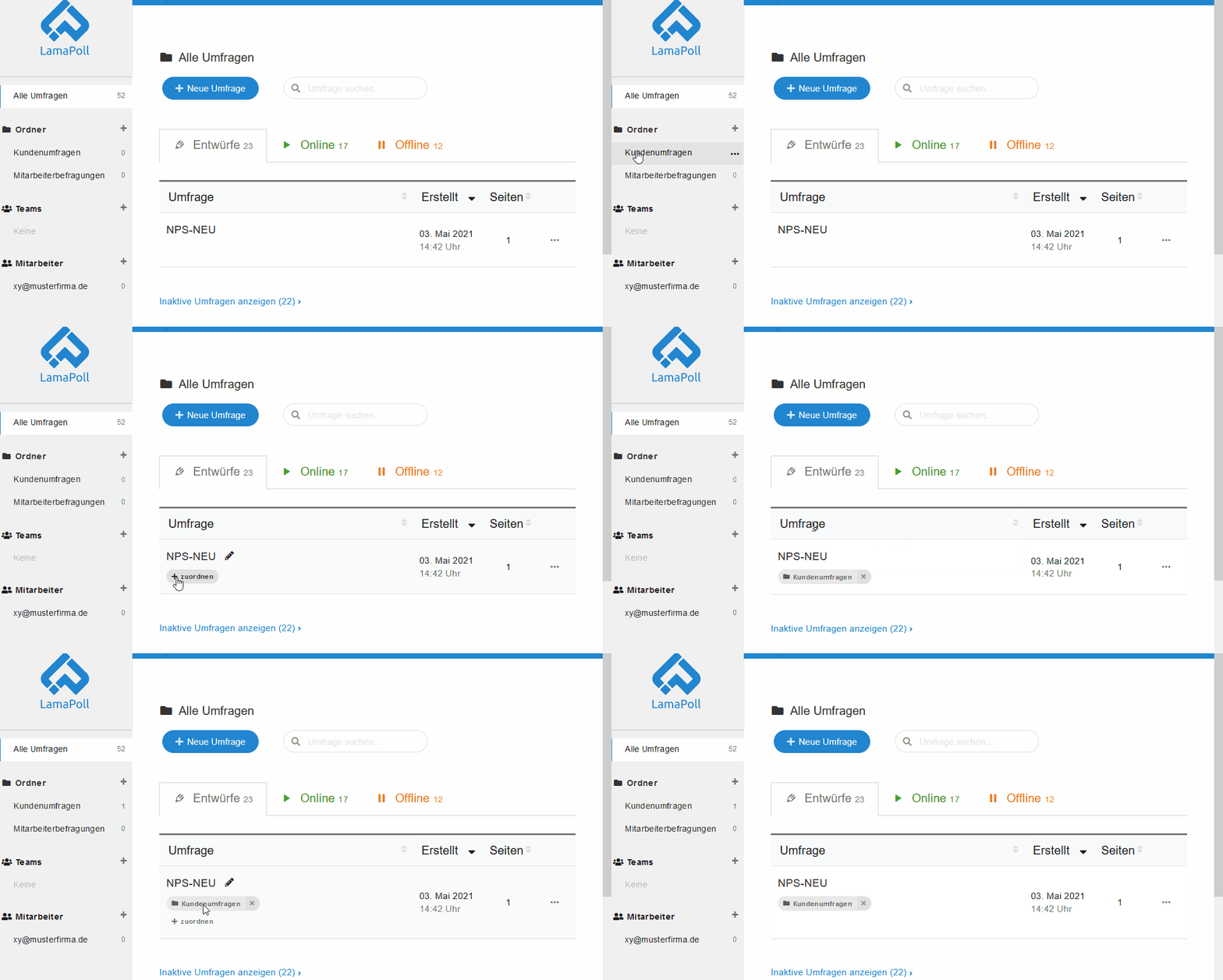 GIF: a survey is sorted into the existing folder "Customer surveys" using the "assign" button
As soon as you assign a survey to a folder, the number to the right of the folder goes up automatically.
You can also use the "+assign" button to assign a survey to an account user or a team, provided the user or team has already been created in the account. Among the "+assign" options, users and teams appear as clickable options with a coloured background.
3. Share folders with account users and teams
You can share specific survey folders, or "All surveys", with account users or teams (if you have created any). Sharing means that the user or team gets access to those folders.
To share a folder, go to the user overview. In the row of the user in question, go to the "Shares" column and click the "+Share" button. Then select the survey folders you want.
Clicking the green "All surveys" option shares every survey in the account, with the permissions that apply to it.
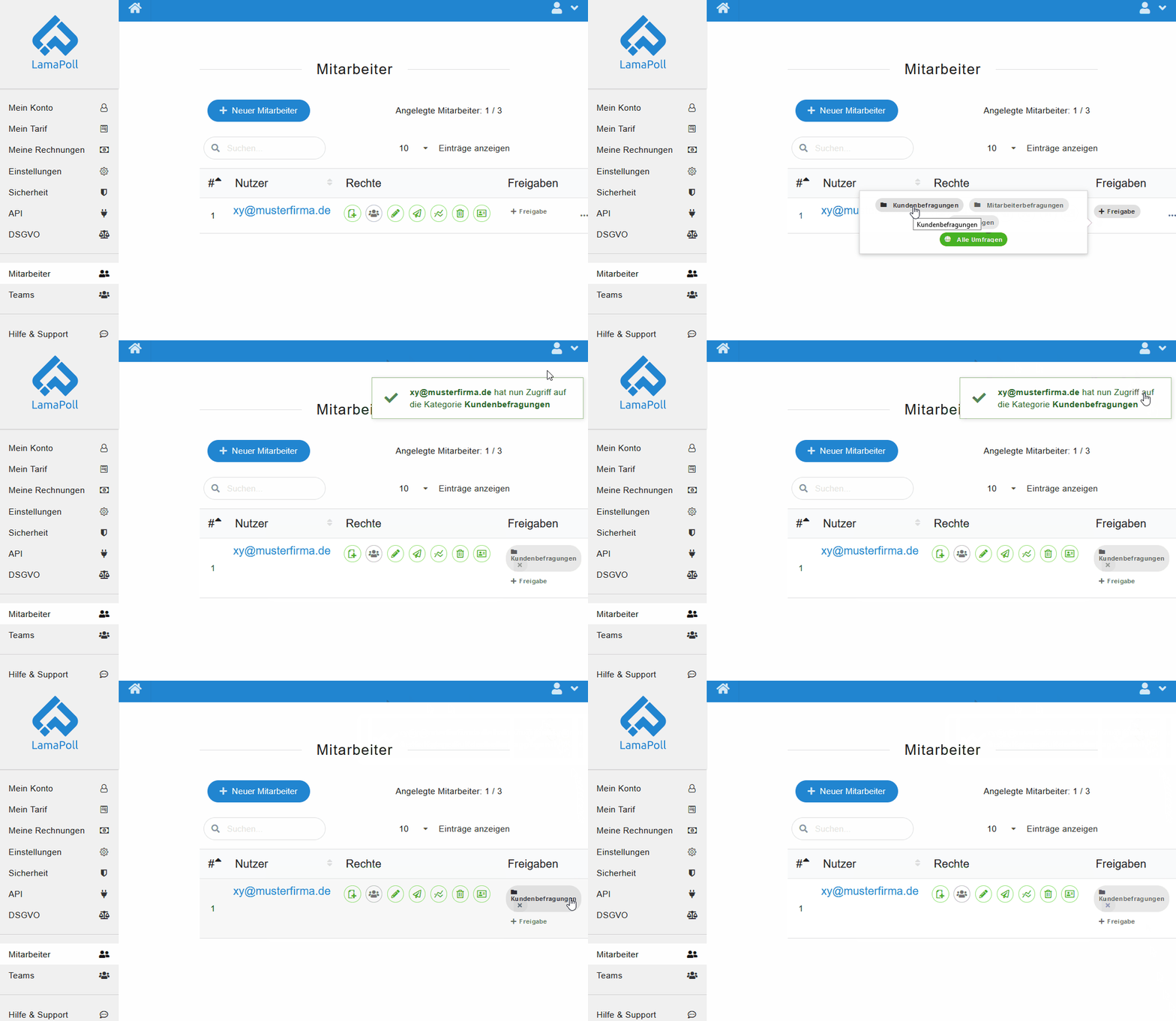 GIF: sharing survey folders with account users in the user overview
When you share surveys and survey folders, account users or teams always get access with the basic permissions assigned to them in user management (Edit, Publish, Analyse, Delete, Address book). For more on sharing, see Permissions and sharing.
4. Tips for managing your surveys
- You can edit or delete survey folders at any time without affecting the surveys themselves.
- Creating survey folders and assigning surveys to them is especially useful with user management, as it lets you share several surveys (in one folder) with an account user at once.
All you need for our trial version is an email address and a password